Connect ChatGPT
Connect ChatGPT to your team's MCP servers through Bloque as a custom app.
1. Create a Bloque account
Sign up at bloque.run with GitHub or email. A Hub is created for you automatically.
2. Add an MCP server
Go to MCP Servers → Add Server and pick a server from the registry, paste a GitHub URL or npm package name, or enter connection details manually. See Add an MCP Server.
3. Generate an API key
Open API Keys in the sidebar and create a key. Copy it — you'll paste it into ChatGPT.
4. Connect ChatGPT
ChatGPT connects to Bloque as a custom app (MCP server). Custom apps are supported on all ChatGPT plans, but require Developer mode.
Set this up on chatgpt.com in a browser — the desktop and mobile apps don't offer the creation flow. Once created on the web, the app is available in ChatGPT's other clients too.
-
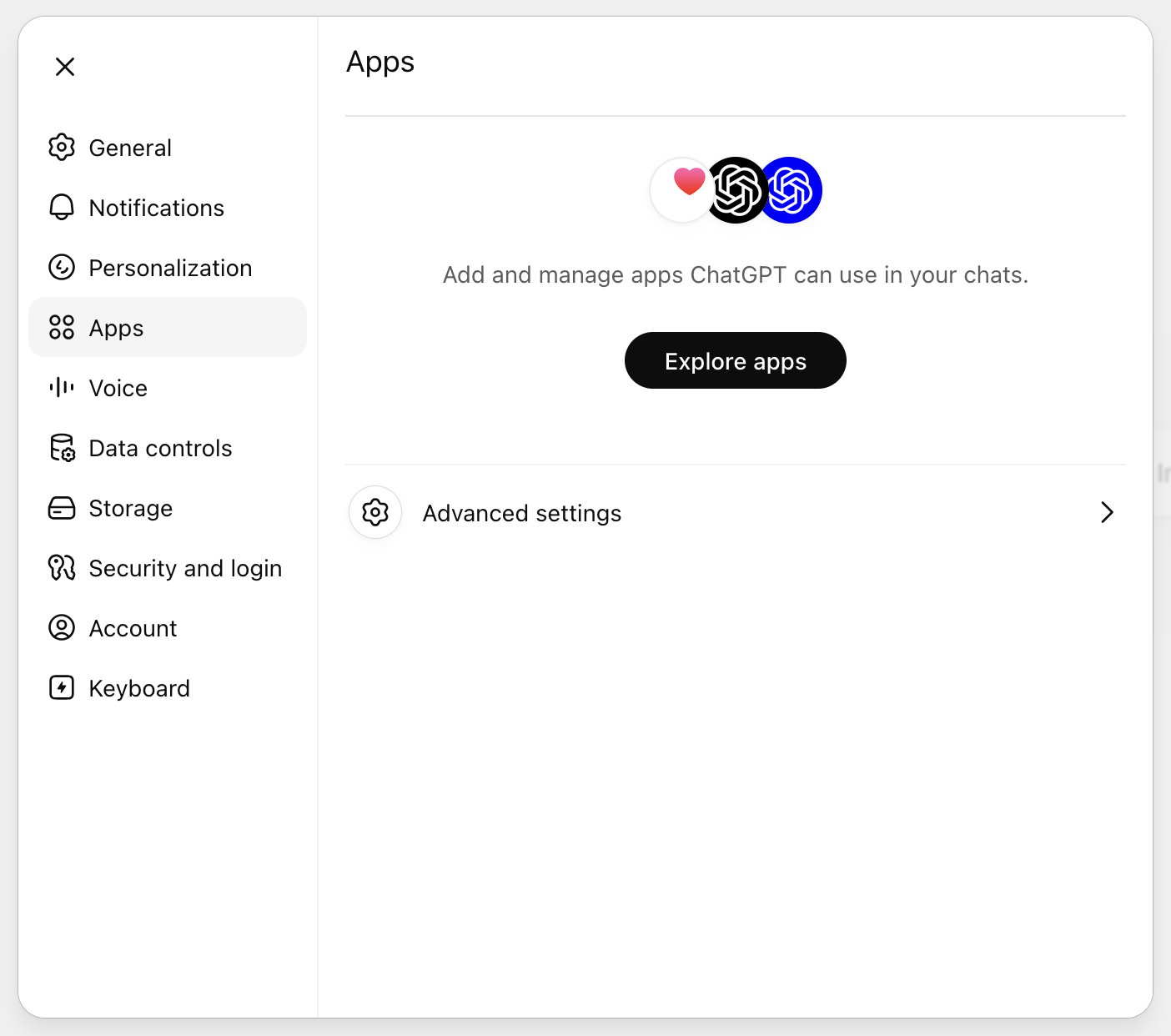
Open Settings → Apps (labeled Apps & Connectors in some workspaces) and click Advanced settings.
-
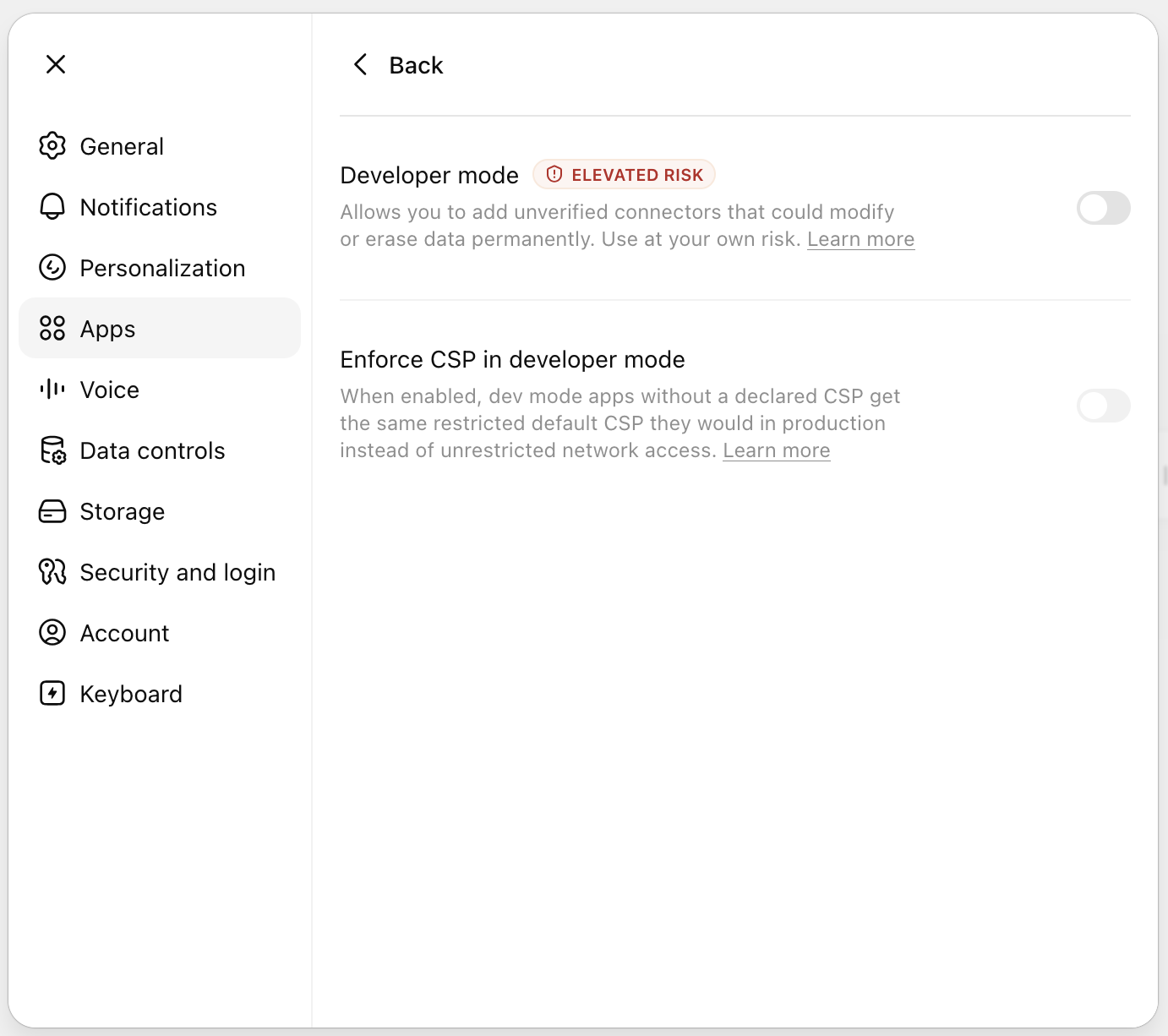
Enable Developer mode.
-
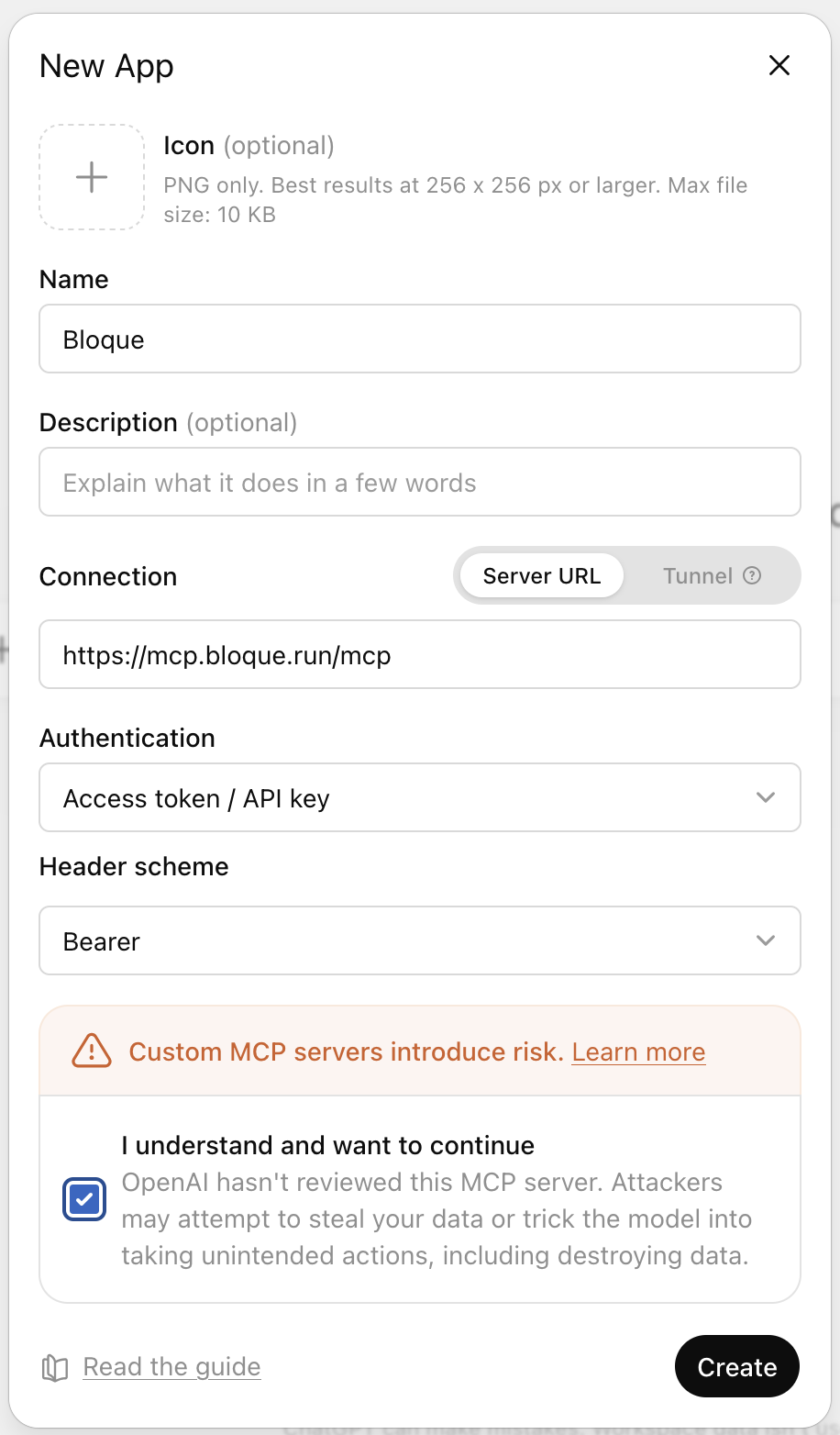
Go back to Apps and click Create to open the New App dialog:
- Name:
Bloque - Connection: Server URL —
https://mcp.bloque.run/mcp - Authentication: Access token / API key
- Header scheme: Bearer
Check I understand and want to continue and click Create.
- Name:
-
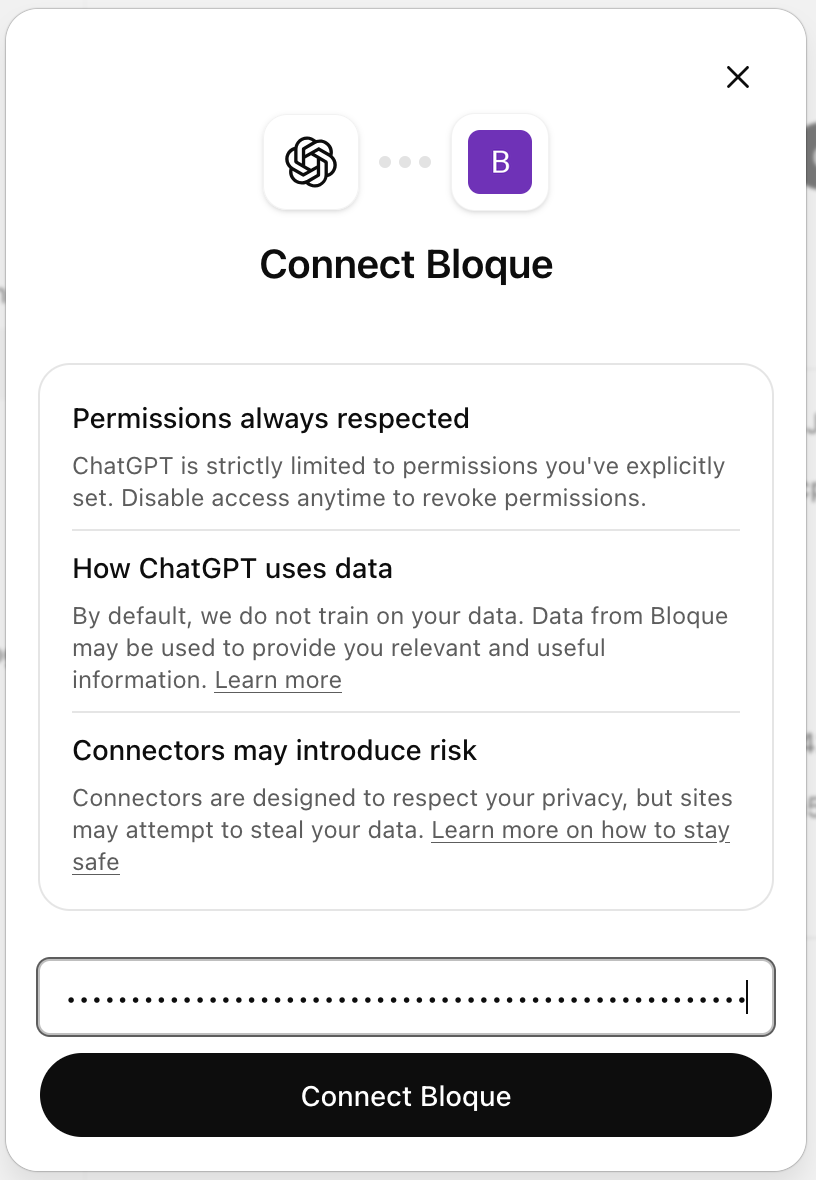
In the Connect Bloque dialog, paste your Bloque API key and click Connect Bloque. ChatGPT connects and imports the tools from your Hub.
-
In a new chat, click the + button near the composer → More, and select Bloque to add it to the conversation.
In Business, Enterprise, and Edu workspaces, an admin may need to allow developer mode before individual users can create apps.
See the ChatGPT connection guide for more details.
5. Try it
Start a new ChatGPT conversation with Bloque enabled, and ask:
What tools do you have available from Bloque?
ChatGPT should list the tools from the servers you added in step 2.
What's next
- Connection Reference — connect other clients to the same Hub
- Authenticate an MCP server — set up OAuth or credentials
- Shared Hubs — invite your team