Connect Claude Desktop
Connect Claude Desktop to your team's MCP servers through Bloque in about five minutes, using a custom connector — no bridge or config file editing needed.
The steps below work the same way on claude.ai in a browser — go to Customize → Connectors there instead of the Claude Desktop app. Once a connector is added on web or Desktop, it becomes available on Claude's iOS and Android apps too, but you can't add a new custom connector from the mobile apps themselves.
1. Create a Bloque account
Sign up at bloque.run with GitHub or email. A Hub is created for you automatically.
2. Add an MCP server
Go to MCP Servers → Add Server and pick a server from the registry, paste a GitHub URL or npm package name, or enter connection details manually. See Add an MCP Server.
3. Generate an API key
Open API Keys in the sidebar and create a key. Copy it — you'll paste it in the next step.
4. Connect Claude Desktop
-
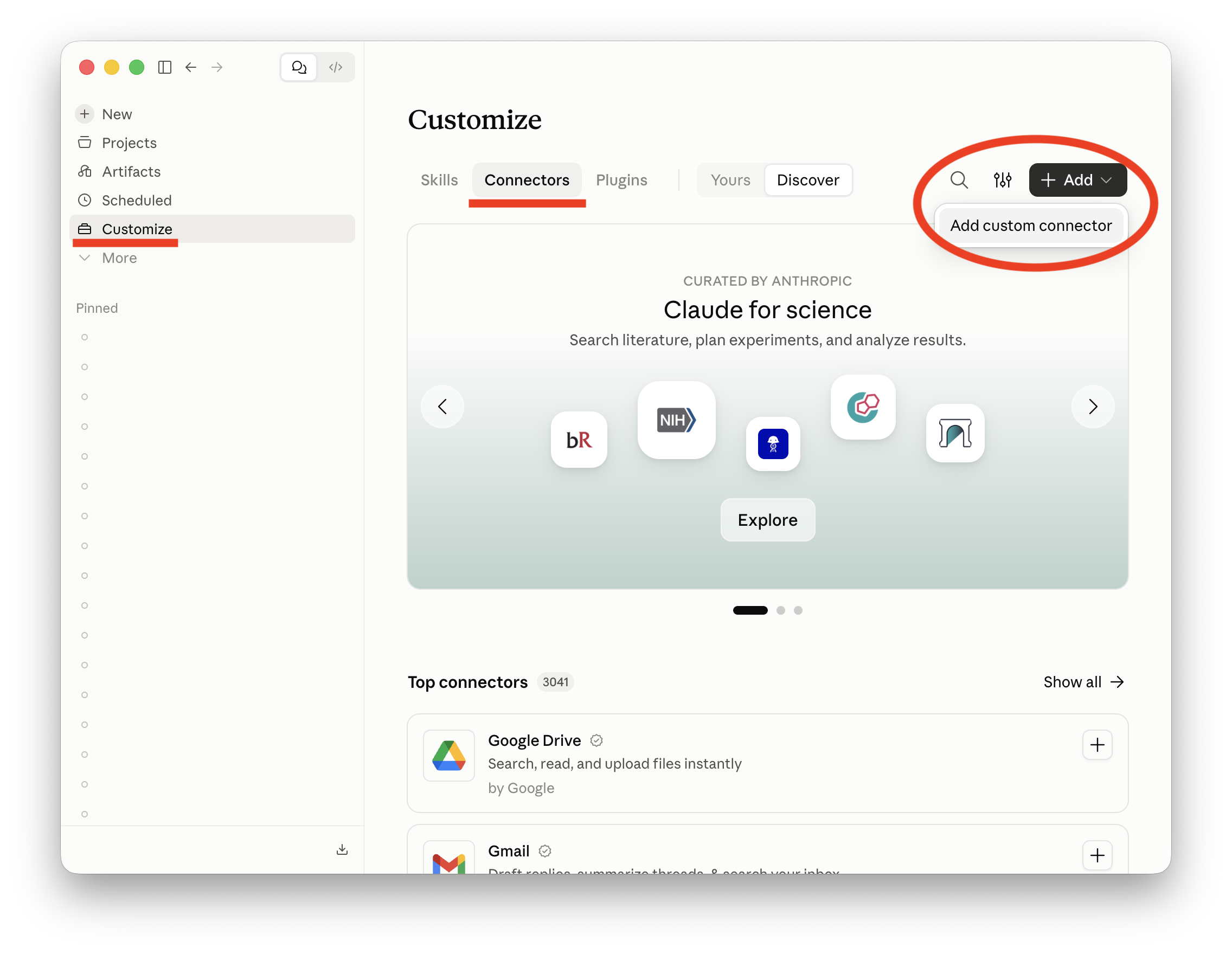
Open Customize → Connectors, click + Add, and choose Add custom connector.
-
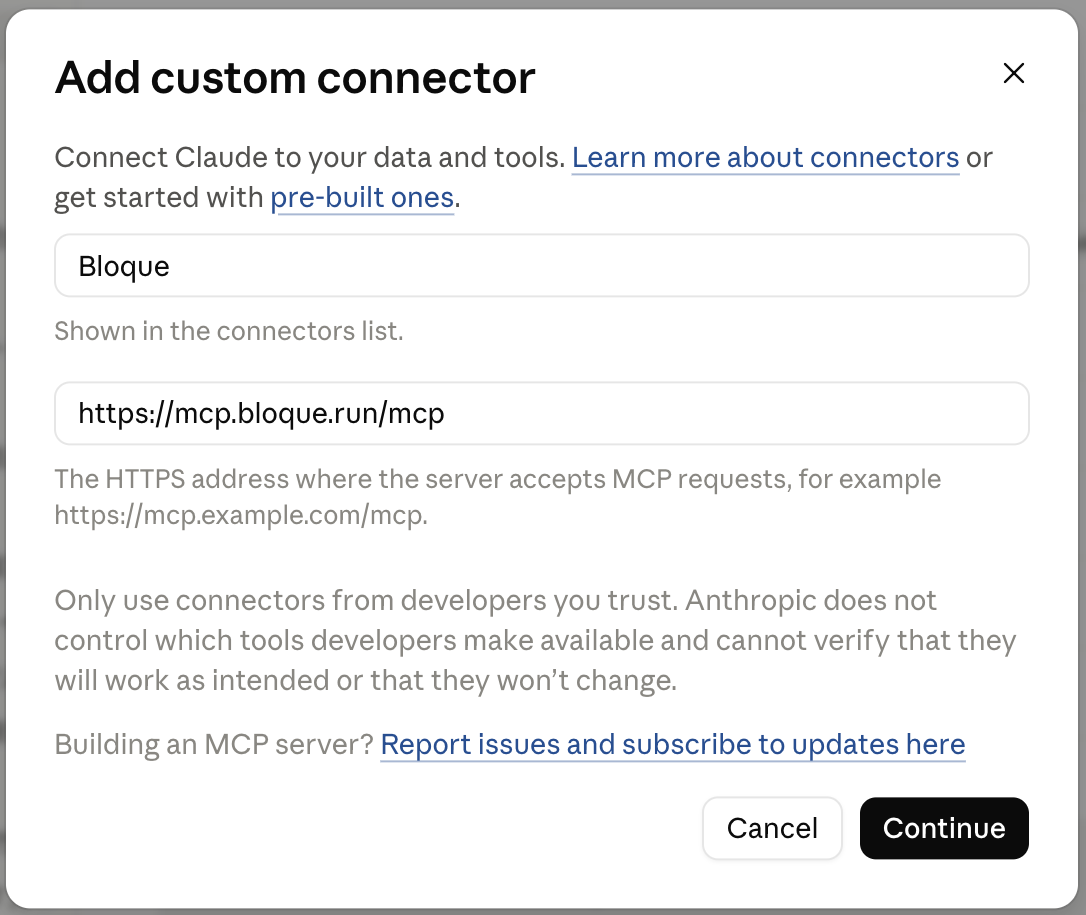
In the Add custom connector dialog, enter:
- Name:
Bloque - URL:
https://mcp.bloque.run/mcp
Click Continue.
- Name:
-
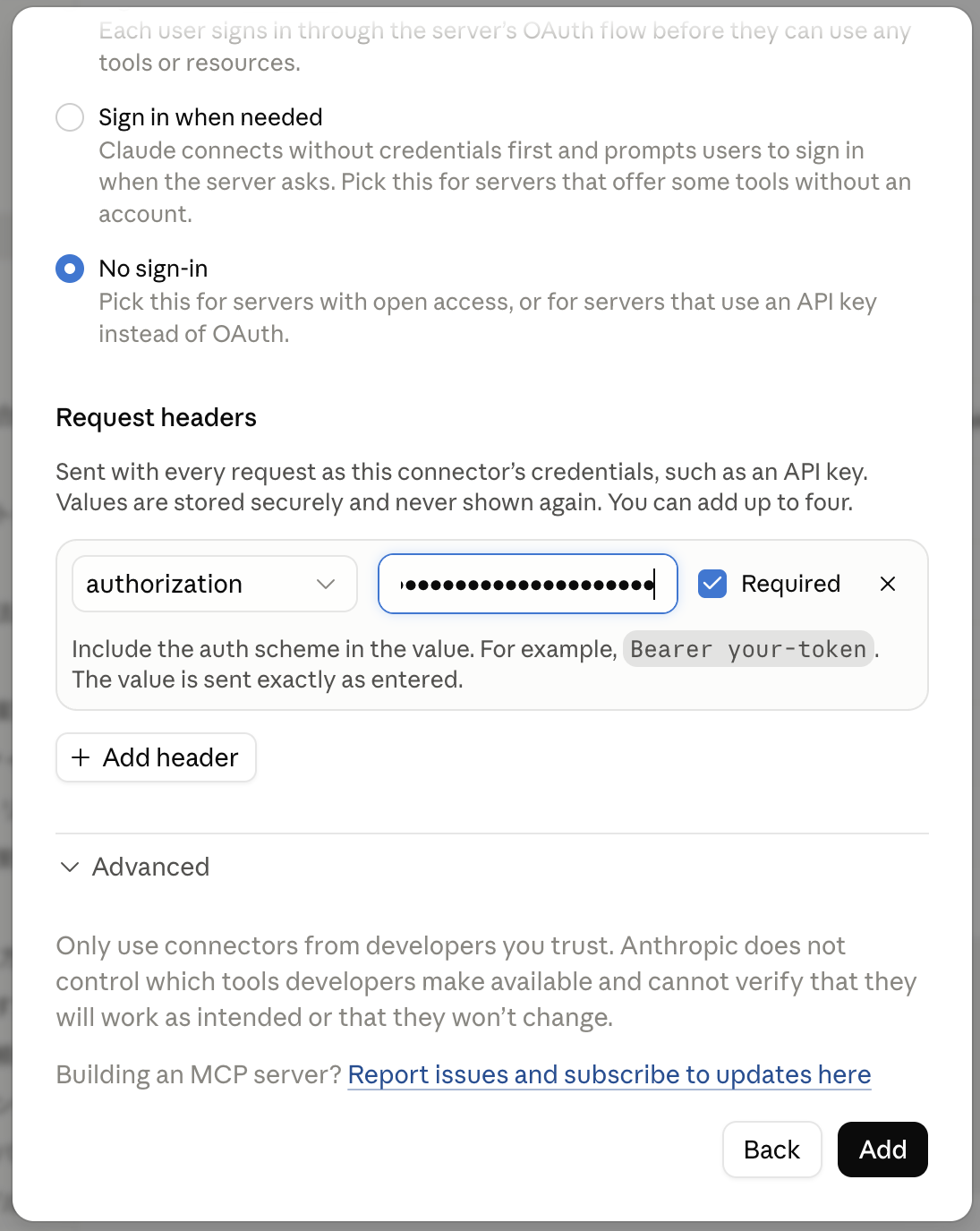
Under Authentication, choose No sign-in — Bloque uses an API key, not OAuth. Then add a request header:
- Header:
authorization - Value:
Bearer <your API key>, replacing<your API key>with the key from step 3 - Leave Required checked
Click Add.
- Header:
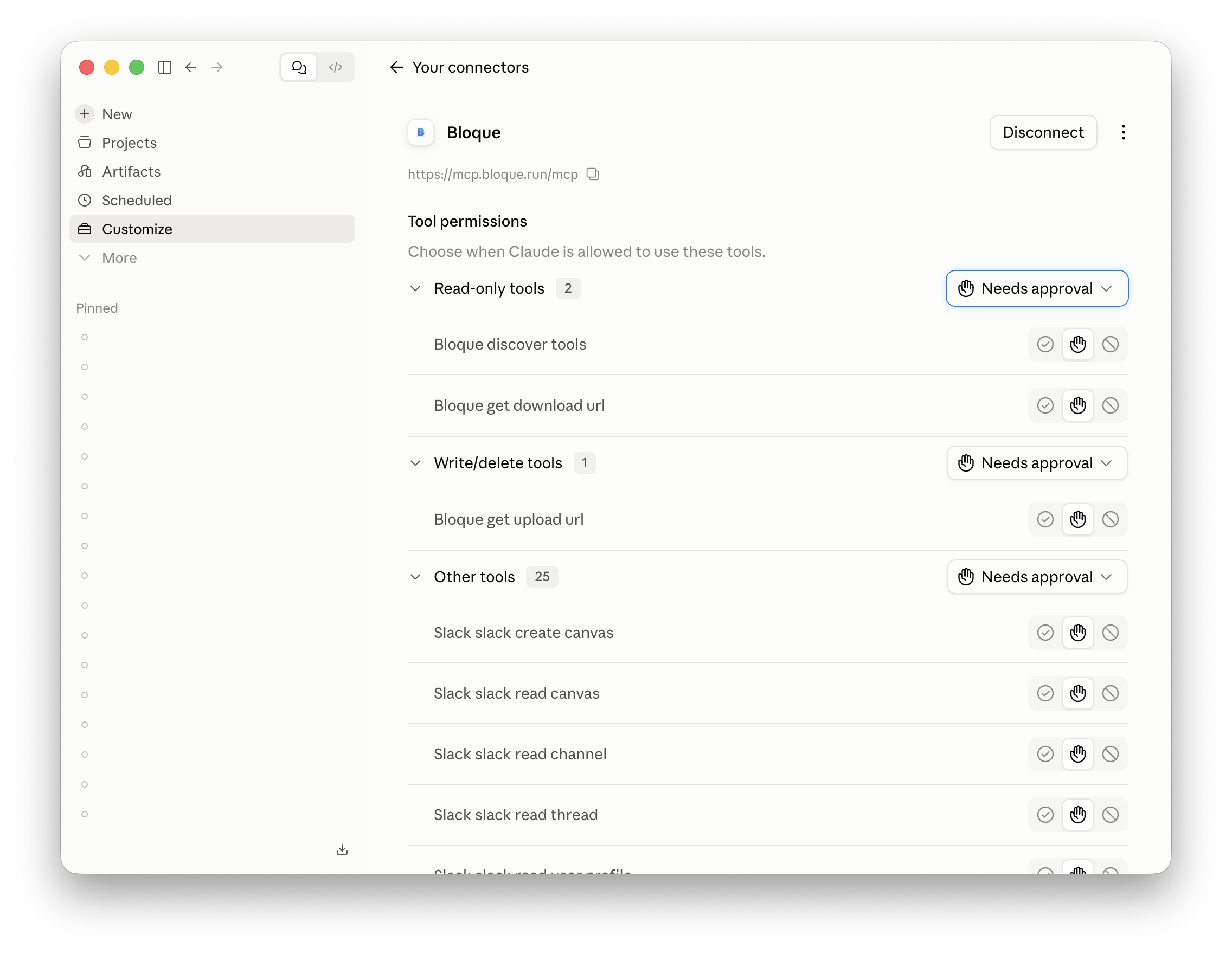
Bloque now appears under Your connectors, with its tools listed under Tool permissions. Each tool defaults to Needs approval — Claude asks before calling it — and you can switch individual tools or whole groups to Always allow or Never.
5. Try it
Open a new chat. Bloque's tools appear under the Search and tools menu. Ask:
What tools do you have available from bloque?
Claude should list the tools from the servers you added in step 2. If nothing shows up, check that the API key in the authorization header is correct and starts with Bearer .
What's next
- Connection Reference — connect other clients to the same Hub
- Authenticate an MCP server — set up OAuth or credentials
- Shared Hubs — invite your team